
Pinstill
Capture it. Mark it up in place.
One shortcut captures the screen and the shot stays right where you selected it, with the annotation toolbar beside it. When you're done, copy it, save it, or pin it to your desktop. Screenshots and history never leave your Mac.
Pinstill is available for Mac for now. The Windows build is still being verified and isn't available yet.
Pinstill is available for Mac — there's no Linux version yet.
This is a desktop app for Mac — open this page on your computer to download it.
 点击放大
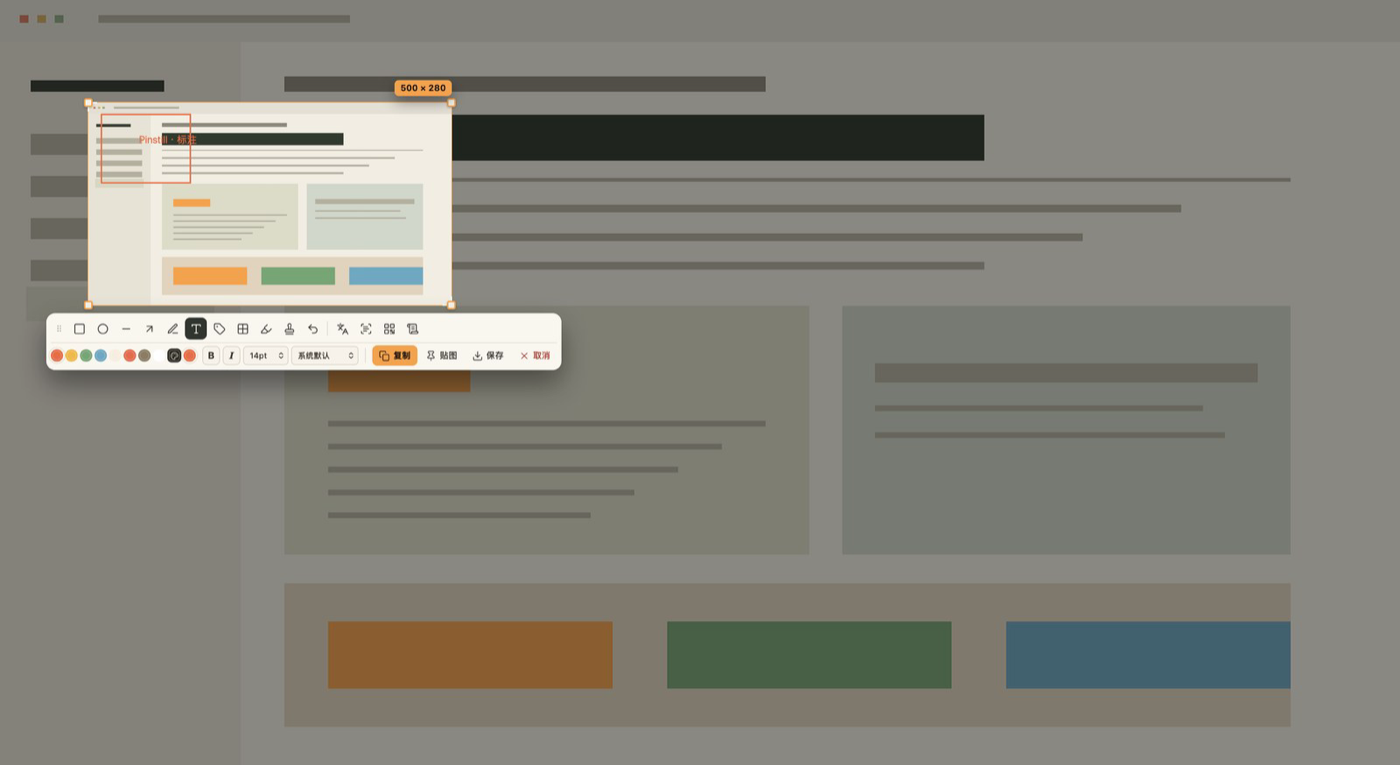
The shot stays in your selection, ready to mark up
Open the full-screen selection from a shortcut or the menu bar. Release to capture: the shot appears right in the selection with the full annotation toolbar beside it — rectangle, ellipse, line, arrow, pen, text, label, mosaic, highlight and watermark, with undo, colour and stroke width within reach. Press Enter or double-click to copy, Esc to cancel. Drag the selection's corners afterwards and it captures again.
点击放大
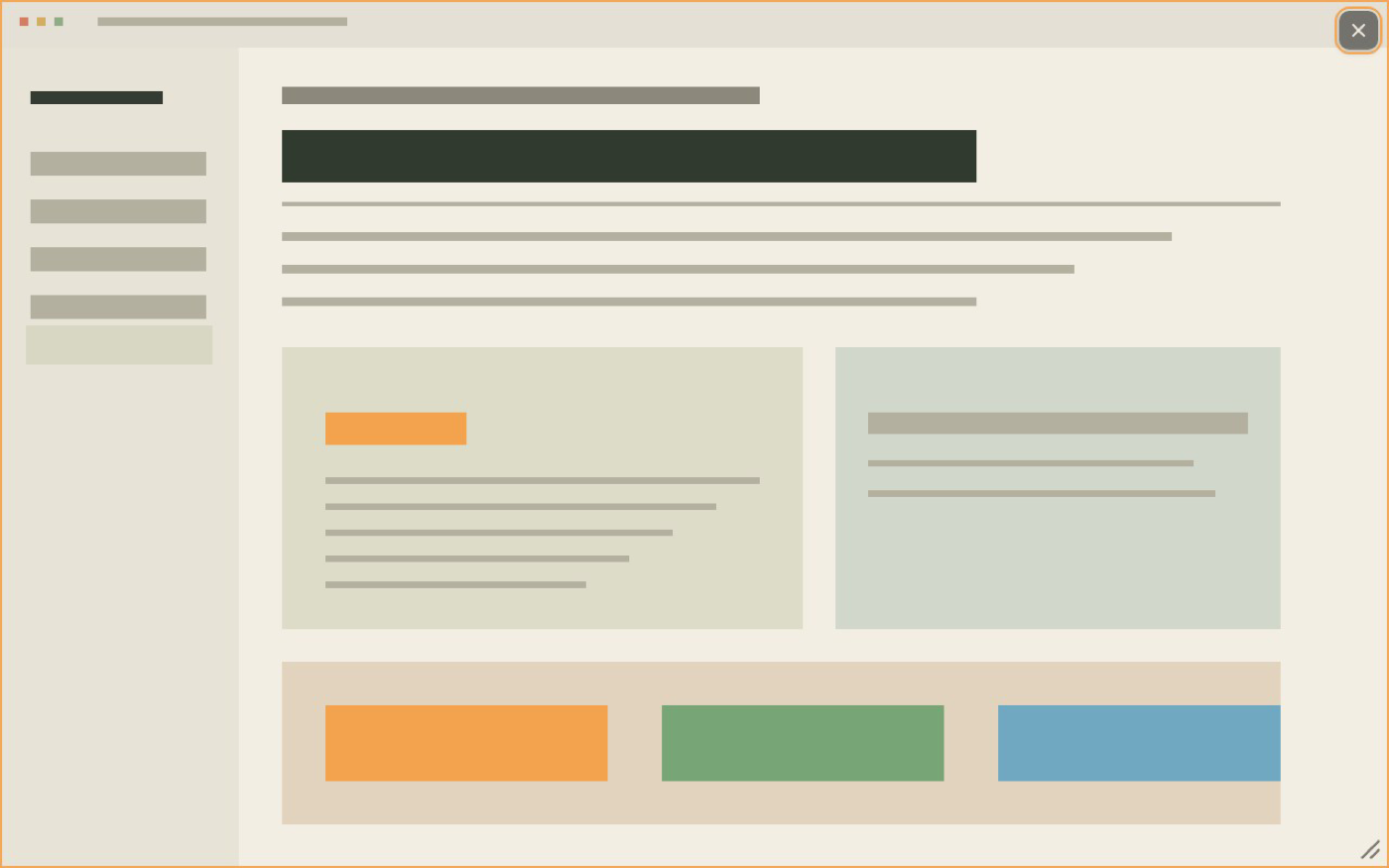
Pin a shot to your desktop and keep it in view
Pin a screenshot to your desktop: always on top, no window frame. Drag it around, scroll to zoom, resize proportionally from the corner, and ⌘/Ctrl-scroll for opacity. Right-click to copy, save or close, double-click to copy, Esc to close. Several pins each keep their place and come back after a restart.
 点击放大
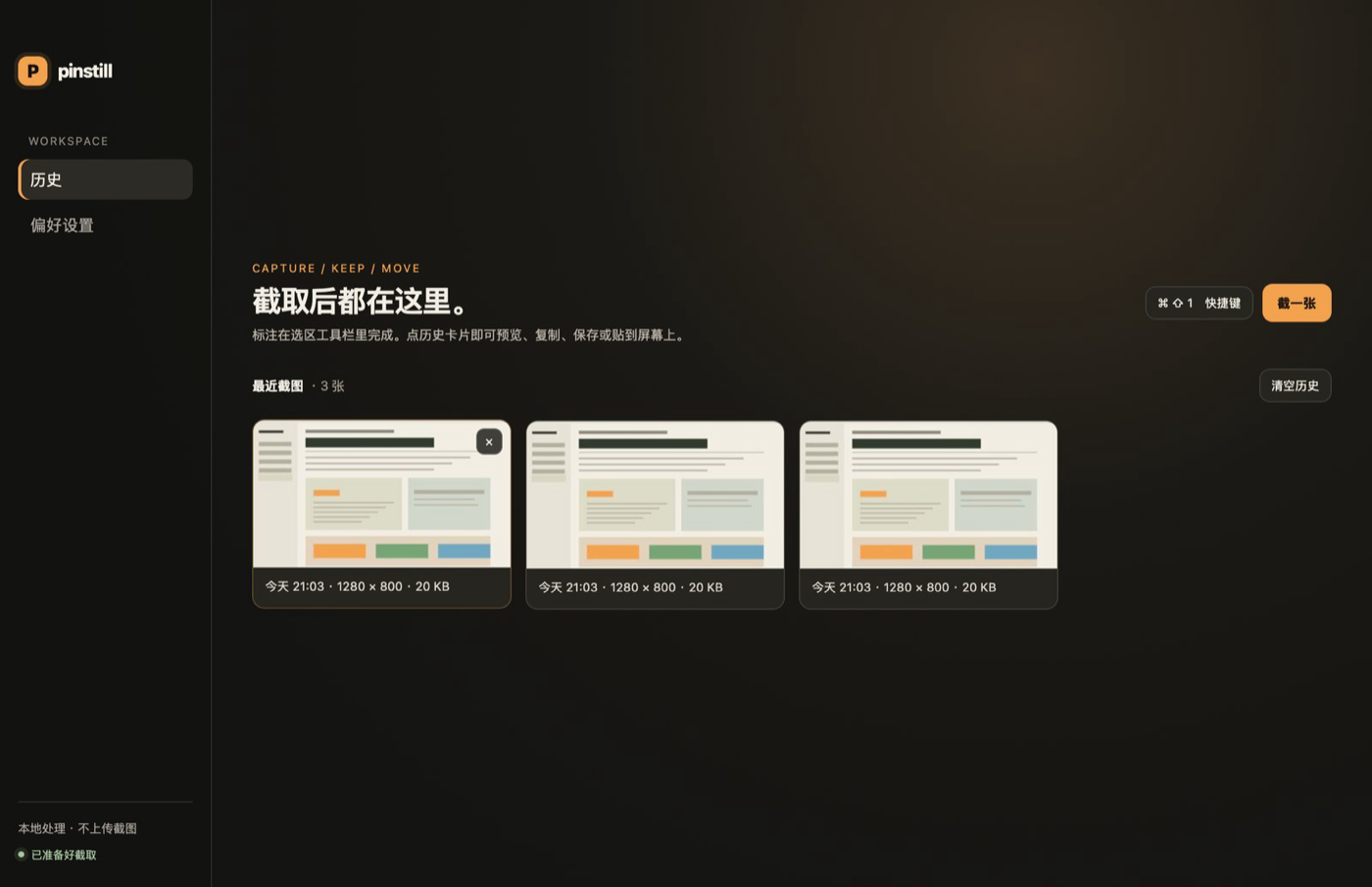
Every shot you took, kept in one place
Every capture is saved on your Mac. The main window holds just history and preferences: thumbnail cards in time order, with a full preview on click — copy, save, pin or delete, switch with ← / →, close with Esc. Delete one or clear them all; history can clean itself by age or size.
 点击放大
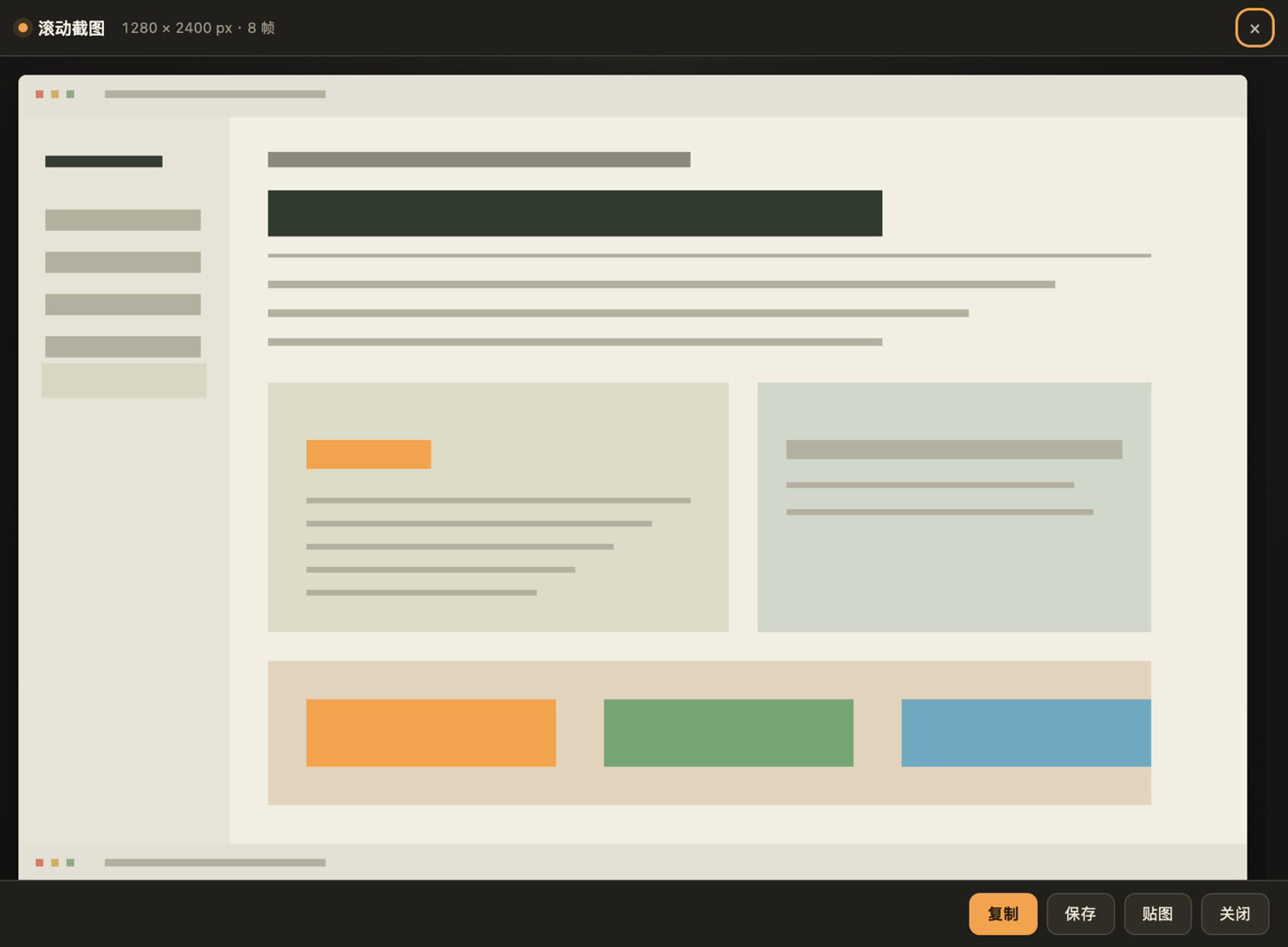
Scrolling capture for the whole long page
Choose Scroll capture in the selection: the overlay steps back to a compact control bar plus a frame around the area. It scrolls and stitches automatically, finishing at the bottom, after a short pause, or at the 120-frame / 30,000 px limit, then shows the long result. Pause, switch to manual, finish now or cancel. Without Accessibility permission it falls back to manual scrolling.
 点击放大
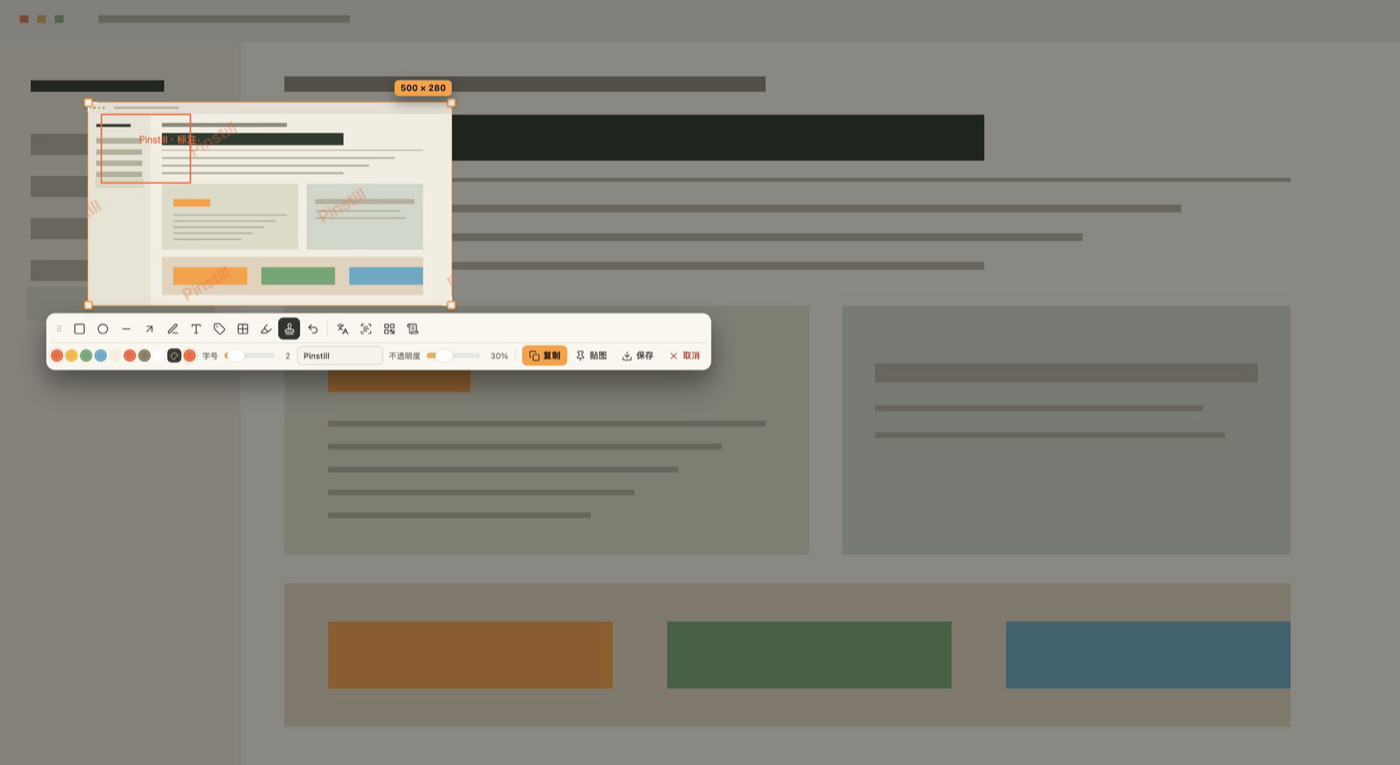
Tiled watermark, baked into the export
One click lays a sparse, -30° tiled watermark across the whole screenshot. Edit the text, opacity, colour and size with a live preview; click again to remove it. Exported images include the watermark automatically.
 点击放大
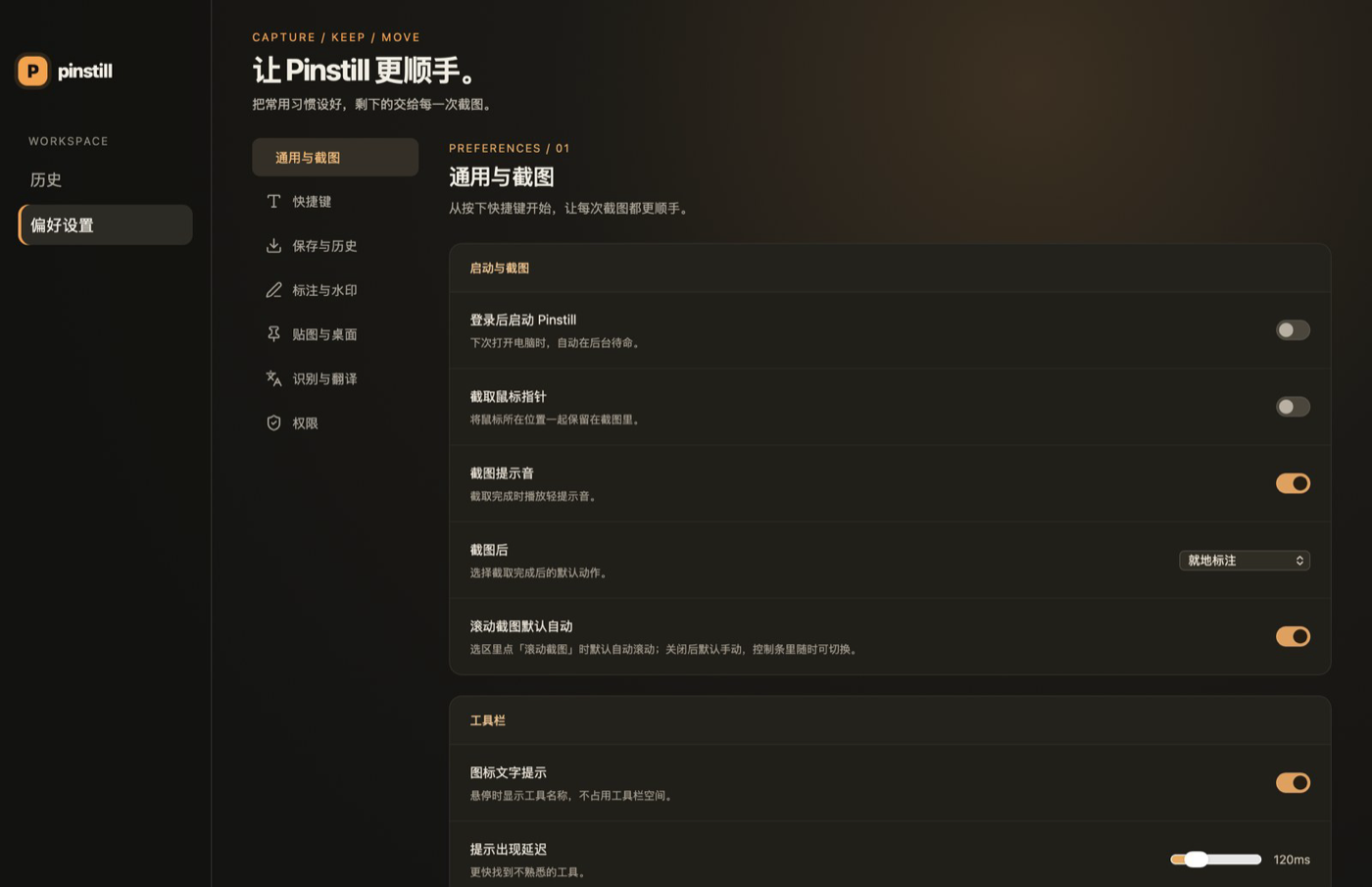
Shortcuts, saving and permissions, all in Settings
Settings covers general and capture, shortcuts, saving and history, annotation and watermark, pins and desktop, recognition and translation, and permissions. Changes apply immediately. The permissions page shows screen recording, Accessibility and launch-at-login status live, with buttons to request, open System Settings or re-check; without screen recording, the main window explains what to do.
 点击放大
Your screenshots stay on your Mac
Pinstill is a local tool: capture, annotation, history and pins all happen on your computer. No account, nothing uploaded.
Nothing uploaded
Screenshots and history live in ~/Library/Application Support/Pinstill and are only read and written locally. The app never sends your content anywhere. Updates are downloaded manually from GitHub Releases.
Two permissions, revocable anytime
Screen Recording is for capturing; Accessibility is only for scrolling capture. Without Screen Recording you can't capture; without Accessibility, scrolling falls back to manual. Check status in Settings → Permissions or open System Settings, and revoke either at any time.
History can clean itself
History is cleaned automatically by age and size by default. Delete one or clear them all; only the history files are affected, never the images you saved to disk.
Data from the old Tupen name is migrated
If you used the earlier Tupen builds, the first launch migrates Application Support, Caches and WebKit data automatically. The bundle identifier changed, so macOS asks for Screen Recording permission once more.
Download and take your first shot
The 0.1.0 Mac download is signed with Developer ID and notarized by Apple, so it opens normally. It runs on both Apple silicon and Intel Macs. The first capture needs Screen Recording permission; scrolling capture also needs Accessibility.
Drag into Applications, then allow permissions
- Download the Mac DMG from this page or GitHub Releases
- Open the DMG, drag Pinstill into Applications and open it
- Allow Screen Recording when the first capture asks; allow Accessibility for scrolling capture
- Use ⌘⇧1 for a region and ⌘⇧2 to pin the clipboard image from the menu bar icon
Without Screen Recording, macOS won't let any app capture the screen; Pinstill explains this in the main window and Settings → Permissions, with a button to open System Settings. Screenshots and history stay in ~/Library/Application Support/Pinstill.
Record new shortcuts in Settings, and choose to copy or pin automatically after a capture; pins return after a restart. History cleans itself by age and size and can be deleted by hand. Updates are downloaded manually from GitHub Releases for now.
Frequently asked questions
Which systems are supported?
Pinstill supports macOS 13 or later on both Apple silicon and Intel Macs (the download is Universal). The Windows build cross-compiles but hasn't been verified on real hardware, so it isn't offered yet; there's no Linux or mobile version.
Are screenshots uploaded? Do I need an account?
Nothing is uploaded and no account is needed. Capture, annotation, history and pins all stay on your Mac in ~/Library/Application Support/Pinstill. Version 0.1.0 has no in-app auto-update yet; new versions are on GitHub Releases.
Why doesn't the first capture work?
macOS requires you to allow Pinstill under System Settings → Privacy & Security → Screen Recording; the app points you there from the main window and permission settings. Restart the app after changing it. Scrolling capture also needs Accessibility on the same page.
How does scrolling capture work?
Select an area and choose Scroll capture in the toolbar. The control bar scrolls the page and stitches the long image, finishing at the bottom, after a short pause, or at 120 frames / 30,000 px. Pause, switch to manual, finish now or cancel; without Accessibility it becomes manual automatically.
Do pins survive a restart?
No. Pins keep their position, size and opacity and come back when you reopen the app. Drag to move, scroll to zoom, resize from the corner, ⌘/Ctrl-scroll for opacity; right-click to copy, save or close.
Fewer steps for your next screenshot
Capture with a shortcut, mark it up in place, then copy, save or pin it to your desktop. Read the install and permission notes before your first shot.